What a workflow does
Example: HEIC → JPG → WebP
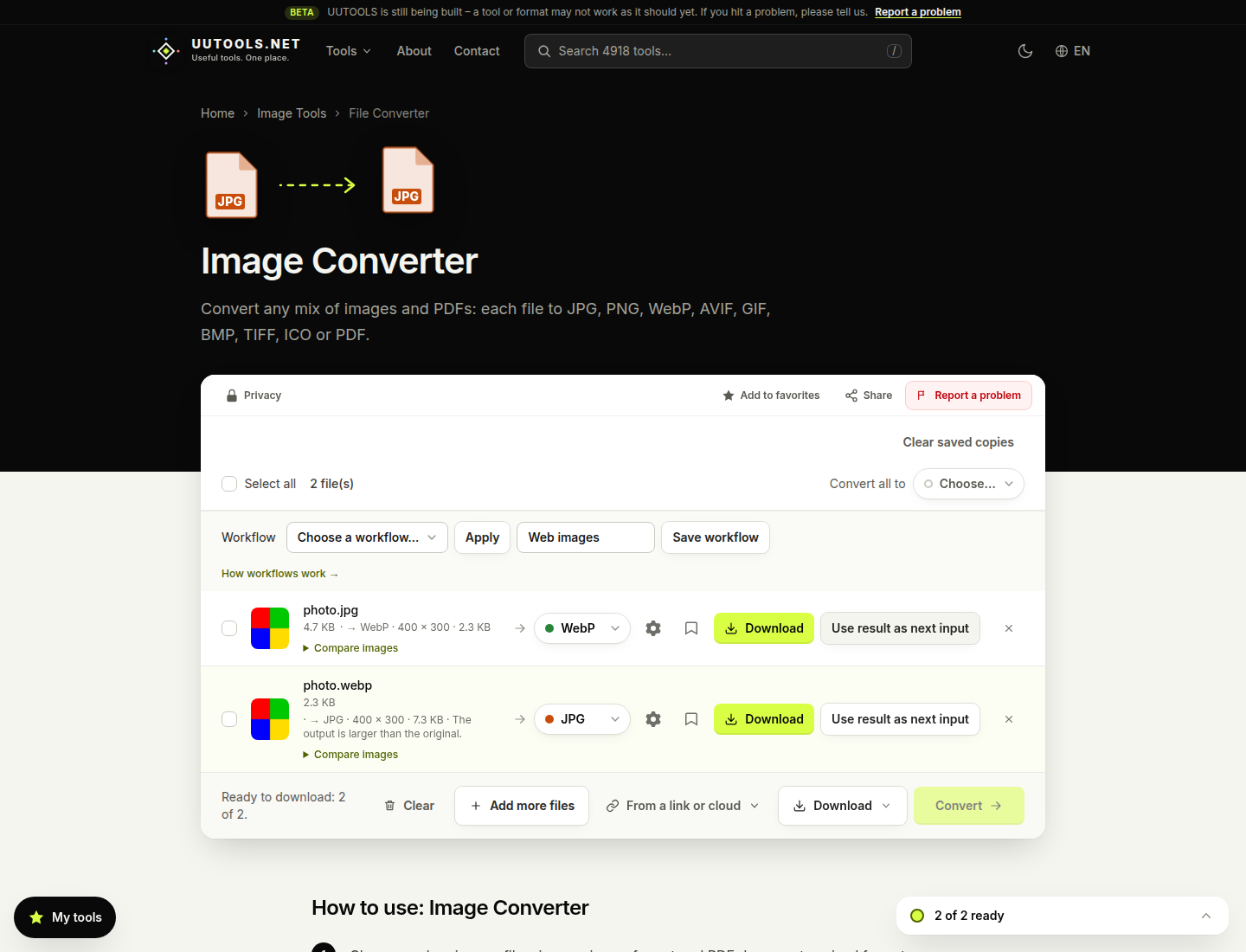
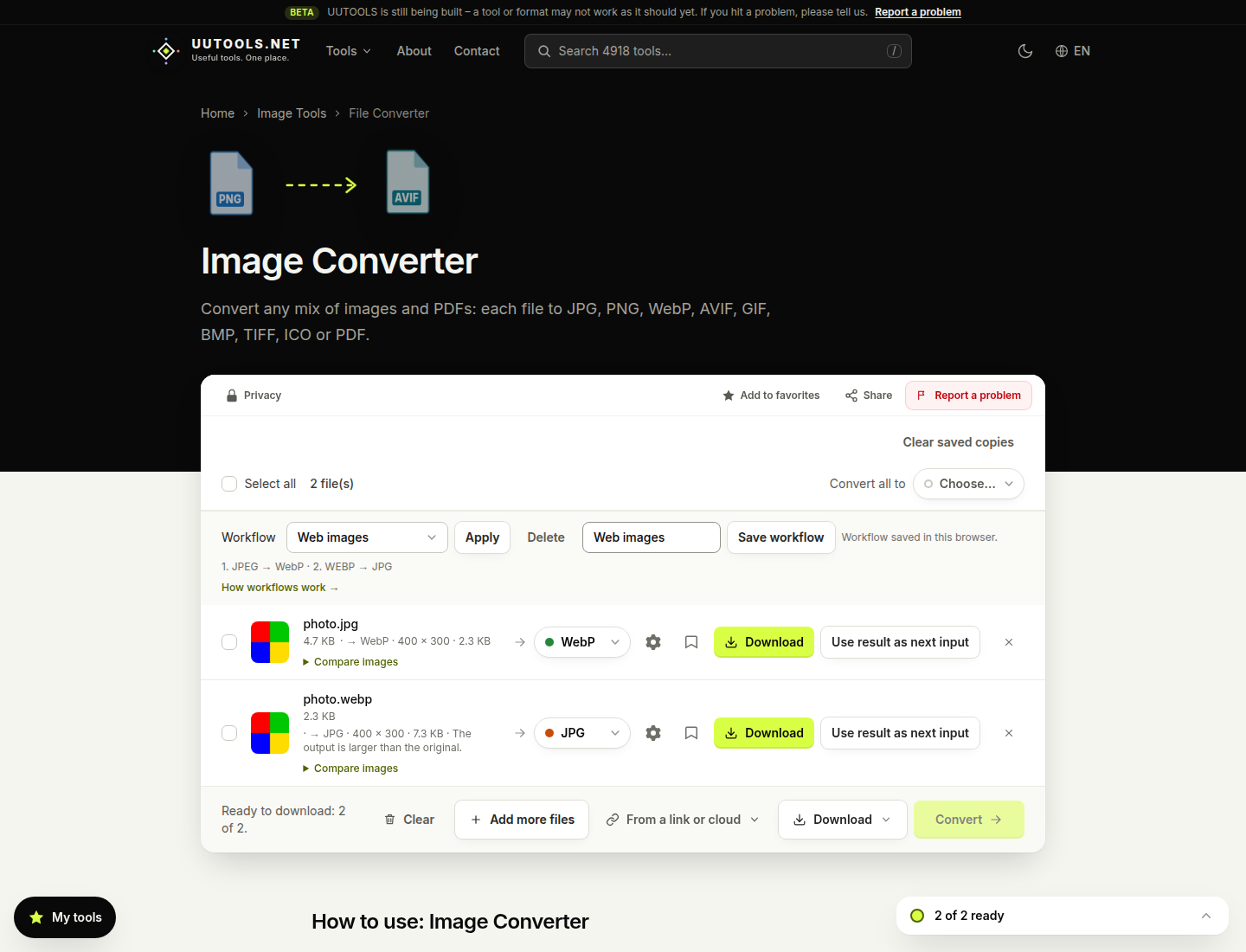
A workflow is a saved sequence of conversion formats and compatible options. For example, convert HEIC to JPG, then create a WebP copy for a website. WebP is not always smaller than an already-compressed JPG; compare the output sizes and adjust quality or dimensions if needed. The workflow is saved in this browser for reuse on this device.
Use this when you want a widely compatible JPG and a WebP version for a website. The WebP may be larger depending on the source and quality settings, so compare the sizes before downloading. Lower the quality or resize the image when you need a smaller file.
Example: HEIC → JPG → WebP
Each arrow is one conversion step. Apply the workflow, then click Convert once to run the sequence.
Create and run a workflow
A workflow keeps the format sequence and compatible settings together. Apply it, then click Convert once to run the sequence.
-
1
Add a starting file
Open Universal Converter and add a file. Choose the output format for the first conversion. Adjust its options if needed.
-
2
Build the sequence
Convert the file, then use “Use result as next input” to add the result as the next file. Choose its next output. Repeat for every step you want in the recipe.
-
3
Save the workflow
Select a file in the chain, enter a workflow name, and choose Save workflow. The converter saves the formats and compatible settings in this browser.
-
4
Reuse it on another file
Add a compatible file, select the saved workflow, and choose Apply. The first output and its saved options are prepared for you.
-
5
Run the workflow
Select the saved workflow, choose Apply, then click Convert once. The converter automatically runs each compatible step in order and prepares the final result for download.
Saved preset or workflow?
One conversion or a whole sequence
Use a saved preset when you want to repeat settings for one conversion. Use a workflow when a file must pass through multiple formats or tools in a set order.
Saved preset
Stores options for a single conversion, such as image quality or video resolution. Presets are available from the conversion options for a file.
Workflow
Stores multiple conversion steps and their compatible options. Continue each result as the next input to move through the sequence.
Files stay in the right place
Where processing happens
Each step follows the processing mode shown by the converter before you start it. If the step runs in your browser, the next step uses that local result directly. If the step runs on the server, the next server step uses the previous server result directly, so a large intermediate file does not need to be downloaded and uploaded again. Your file is not silently moved between these modes.
The browser/server mode can depend on the file type, output format, file size, and available browser support. Check the processing label for each step before starting.
Good to know
- Workflows are stored in this browser only. They do not sync to other browsers or devices.
- A workflow stores conversion settings, not the original file or finished results.
- Options that rely on a separate uploaded file, such as a custom image used as a video background, are not stored in the workflow.
- You start the workflow yourself. If a step needs a server upload, the existing confirmation pauses it until you approve. Nothing runs before you click Convert.
- If a later step cannot accept the previous output format, choose a compatible format or edit and save the workflow again.
Workflow questions
Does a workflow convert every step automatically?
Yes. Apply prepares the first step; one click on Convert starts the full sequence. If a step needs server processing, the existing confirmation pauses the workflow until you approve it.
Do I need to download and re-upload an intermediate file?
No. Browser results are passed to the next browser step directly. When consecutive steps run on the server, the server passes its result directly to the next job.
Can I edit or delete a saved workflow?
Select the saved workflow, update the conversion chain and its options, then save using the same name to replace it. Use Delete to remove the selected workflow from this browser.
Why is a saved workflow missing on another device?
Workflows are stored in local browser storage, not in an account. They are available only in the same browser profile on the device where you saved them.
Does saving a workflow save my files?
No. A workflow stores the sequence and compatible options only. It does not store your source file or output files.
Ready to save your first workflow?
Open Universal Converter, add a file, and build a short sequence you can reuse.
Open Universal Converter